
Find your way around FID
The toolbar, file categories, download list and status bar.
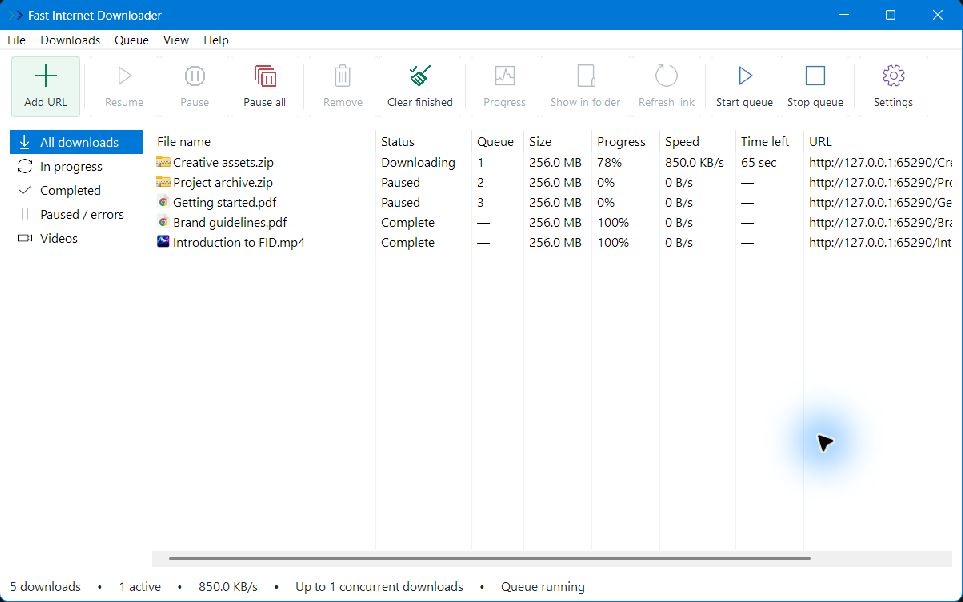
The toolbar
Add URL starts a new download. Select a row to use Resume, Pause, Remove, Progress, Show in folder, or Refresh link. Buttons that do not apply to the selection are disabled.
Pause all, Clear finished, Start queue, Stop queue, and Settings manage the wider workspace. Menus at the top give another route to these actions.
File categories
The left sidebar filters the list into All downloads, In progress, Completed, Paused / errors, and Videos. A filter changes the view, not the saved files. Windows file icons help distinguish file types.
The download list
Columns show filename, status, queue position, size, progress, speed, time left, and URL. A size or time may remain unknown until the website provides enough information. Scroll horizontally to see columns outside the window.
Use Ctrl to select separate rows, Shift to select a range, or Ctrl + A to select all. Right-click a row for more actions, including queue order controls.
A quieter toolbar
Toggle View → Show toolbar labels or press Ctrl + Shift + L. FID remembers your choice. Hover over a toolbar icon to see its action.
The status bar
The bottom bar summarizes your downloads, active transfers, combined speed, simultaneous-download limit, and whether the queue is running.