
Read the progress window
Overall progress, per-connection detail and a compact scrolling grid.
Open a progress window
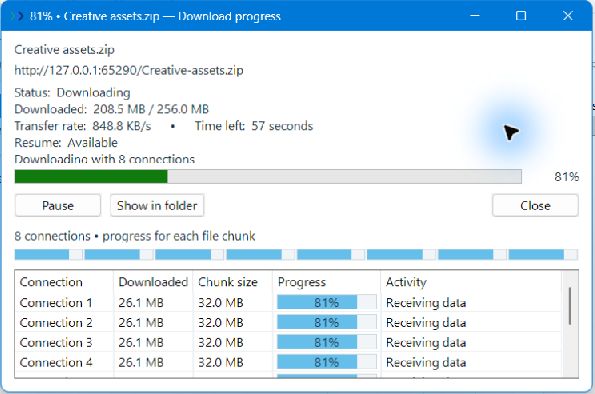
Double-click a confirmed entry or select it and choose Progress. The window shows status, downloaded bytes, total size when known, transfer rate, estimated time left, and resume availability.
Understand the chunk grid
For parallel file downloads, each row represents a connection and its chunk. Columns show transferred bytes, chunk size, progress, and current activity. The segmented strip gives a compact overview of the file’s parts.
The window stays compact by default. Scroll vertically to inspect additional connections. You can drag the window edges to make it larger; the list uses the extra space rather than forcing the dialog to grow automatically.
Unknown totals and estimates
If a website does not provide a size, FID shows activity and bytes without inventing a percentage. Time remaining is an estimate that changes with speed and available information.
Video progress
Video downloads report the current transfer stage. Individual video-fragment counters are not available. Wait until FID marks the whole job complete, including any combining stage.
Close, pause or open the folder
Close dismisses this window and leaves the download running. Pause stops the transfer temporarily. Show in folder opens the file location. The completion dialog can offer Open, Open with, and Show in folder when this progress window is open.