
Use browser extensions
Choose your browser, connect FID, capture files, and use video controls.
Choose an official listing below, then follow the guide for that browser. A listing marked as coming soon is not available yet; use Add URL in the desktop app until an official extension is published.
Chrome Web Store
Google Chrome
Get the extension for Google Chrome Download source ZIP for Google Chrome Read the Google Chrome guide
Microsoft Edge Add-ons
Microsoft Edge
Get the extension for Microsoft Edge Download source ZIP for Microsoft Edge Read the Microsoft Edge guide
Firefox Browser Add-ons
Mozilla Firefox
Get the extension for Mozilla Firefox Download source ZIP for Mozilla Firefox Read the Mozilla Firefox guide
Opera Add-ons
Opera
Get the extension for Opera Read the Opera guide
Brave-compatible listing
Brave
Get the extension for Brave Read the Brave guideInstall a source ZIP manually
For Chrome, Edge, Opera, or Brave, download that browser’s source ZIP, extract it to a permanent folder, open the browser’s extensions page, enable Developer mode, and choose Load unpacked. Select the extracted folder that contains manifest.json. Keep that folder in place while the extension is installed.
For Firefox, extract the Firefox source ZIP, open about:debugging#/runtime/this-firefox, choose Load Temporary Add-on, and select manifest.json. A source ZIP loaded this way is temporary and must be loaded again after Firefox restarts; permanent Firefox installation requires a signed add-on package.
Install only the FID extension linked from this page or another official FID release page. Browser installation and desktop pairing are separate steps. The popup shows Desktop connected only after both are complete.
Google Chrome
- Install FID from the Chrome Web Store link above.
- Open
chrome://extensionsand confirm the extension is enabled. - Open the extension and choose Connect / open FID.
- Allow Chrome to open FID, approve the connection in the desktop app, then confirm the popup shows Desktop connected.
Microsoft Edge
- Install FID from the Microsoft Edge Add-ons link above.
- Open
edge://extensionsand confirm the extension is enabled. - Choose Connect / open FID in the extension.
- Allow Edge to open FID and approve the connection. If pairing is unavailable in your release, use Add URL until Edge desktop integration is supplied.
Mozilla Firefox
- Install FID from the Firefox Browser Add-ons link above.
- Open
about:addons, select Extensions, and confirm FID is enabled. - Open the extension and follow its connection prompt.
- Approve the connection in FID when prompted. Firefox support requires a compatible FID extension and desktop release; a Chrome extension package cannot be installed as a substitute.
Opera
- Install FID from the Opera Add-ons link above.
- Open
opera://extensionsand confirm FID is enabled. - Choose Connect / open FID and approve the desktop connection.
- If the listing or pairing option is unavailable, keep downloads in Opera or paste a direct link into FID.
Brave
- Use the Brave-compatible official listing above.
- Open
brave://extensionsand confirm FID is enabled. - Open the extension, choose Connect / open FID, and approve the connection.
- Brave can use Chromium extensions, but desktop pairing still depends on the FID release supporting Brave.
Capture downloads and choose videos
Turn on Capture browser downloads to review supported browser downloads in FID. Capture is optional; leave it off for a download that must finish inside the browser, including form-based or browser-only transfers. If handoff fails, check the browser’s own downloads list.
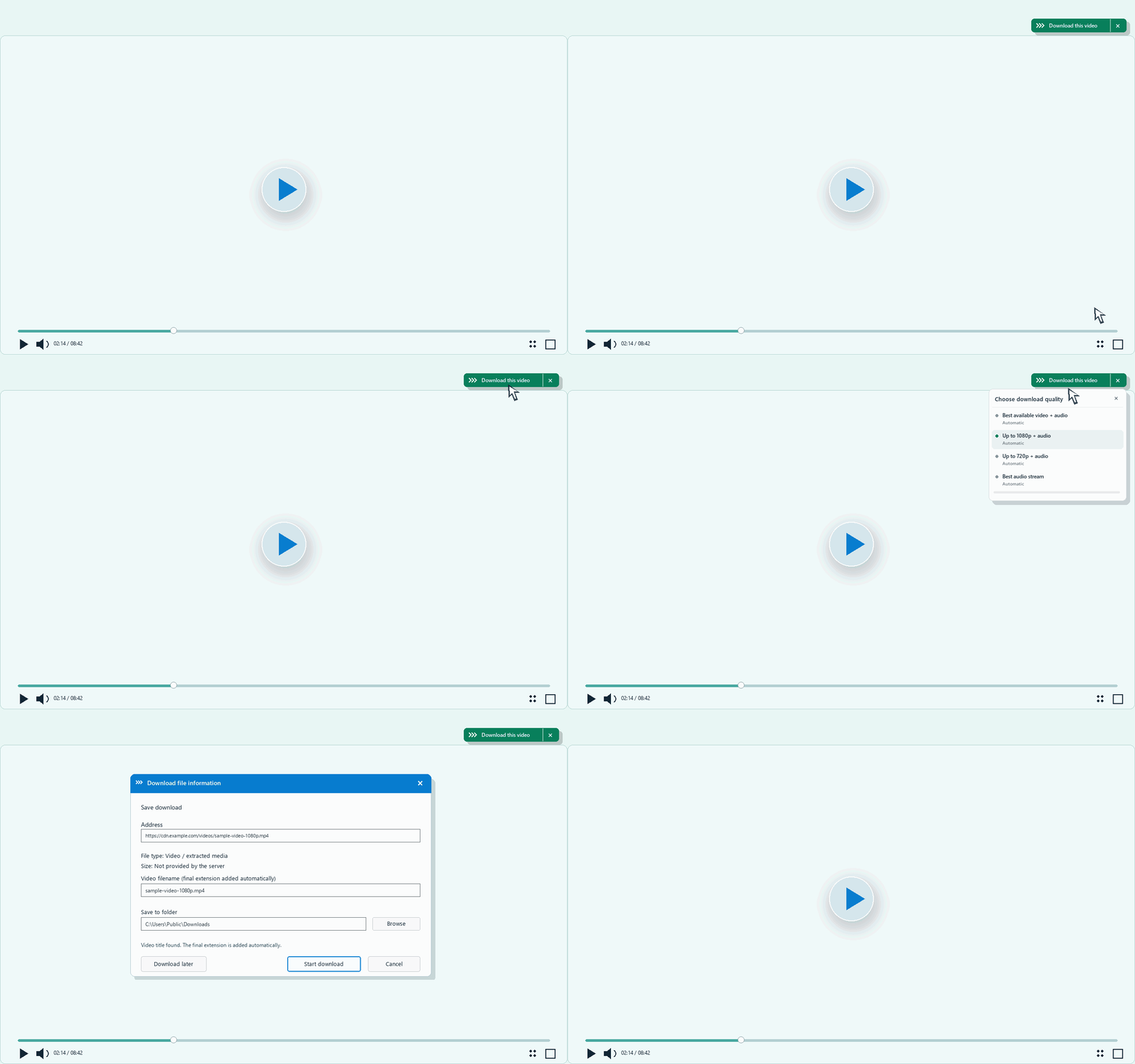
Use the popup or a link’s context menu to send a URL to FID. Enable Show download buttons on videos for supported players. Browser-restricted pages, protected players, closed components, and some fullscreen layouts may not allow an in-page button.
Preferences and troubleshooting
Browser preferences can take up to a minute to sync while the browser is running. If the popup says disconnected, confirm the extension is enabled, browser integration is enabled in FID, and the browser-specific pairing step completed. You can always paste a direct file URL into the desktop app.