
How to schedule downloads in Windows
Choose a local date and time for downloads in FID, reschedule queue entries and understand when scheduled transfers start.
Download scheduling is included in FID Free. Choose when an individual file or video should start. Pro also lets you schedule bulk, playlist and channel selections.
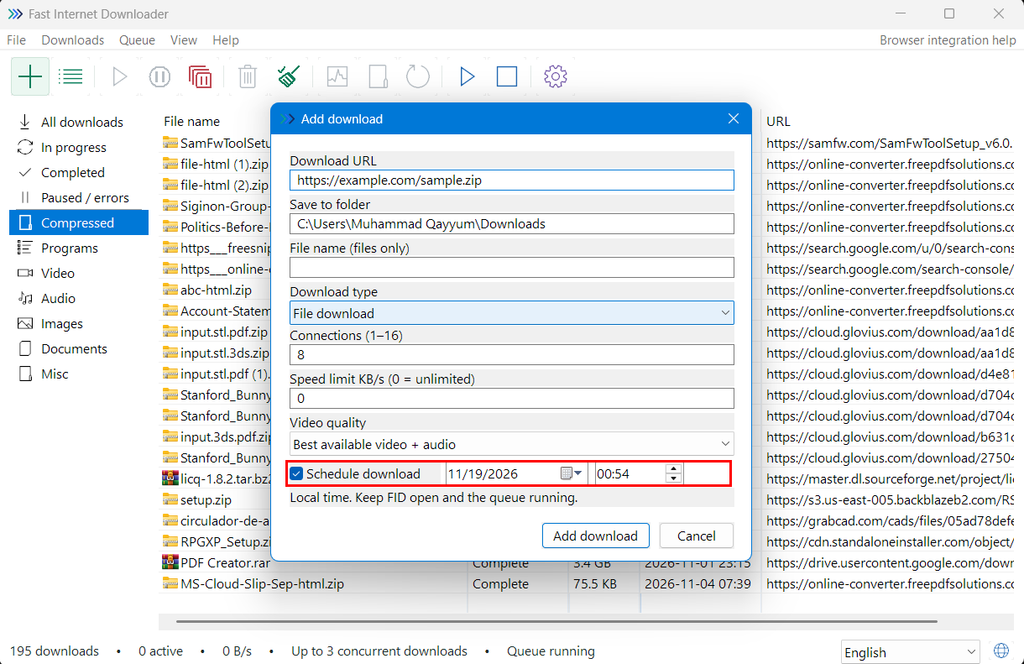
Set a start date and time
- Add a download and choose its destination.
- Enable Schedule download.
- Select a future date and time in your PC’s local time zone.
- Confirm the download. The queue displays the scheduled state until it is eligible to start.
Change an existing schedule
Select the relevant queue entries, right-click and choose Schedule selected downloads. Choose a new time or uncheck the schedule option to remove it.
What must be running?
Your PC must be awake, FID must be open, and the queue must be enabled. Closing the main window keeps FID in the notification area. Choosing Exit stops the app. FID does not wake a sleeping or powered-off PC.
Will the schedule survive a restart?
Saved schedules remain in the download queue. After reopening FID, an overdue item can run when the queue is enabled and a download slot is available. Connection, retry and license requirements still apply.
Learn about queue controls and speed limits.